A real second display
Your computer sees a new monitor at your device's own resolution and refresh rate. Arrange it, drag windows onto it, full-screen a video on it.
- Native resolution
- Native refresh rate
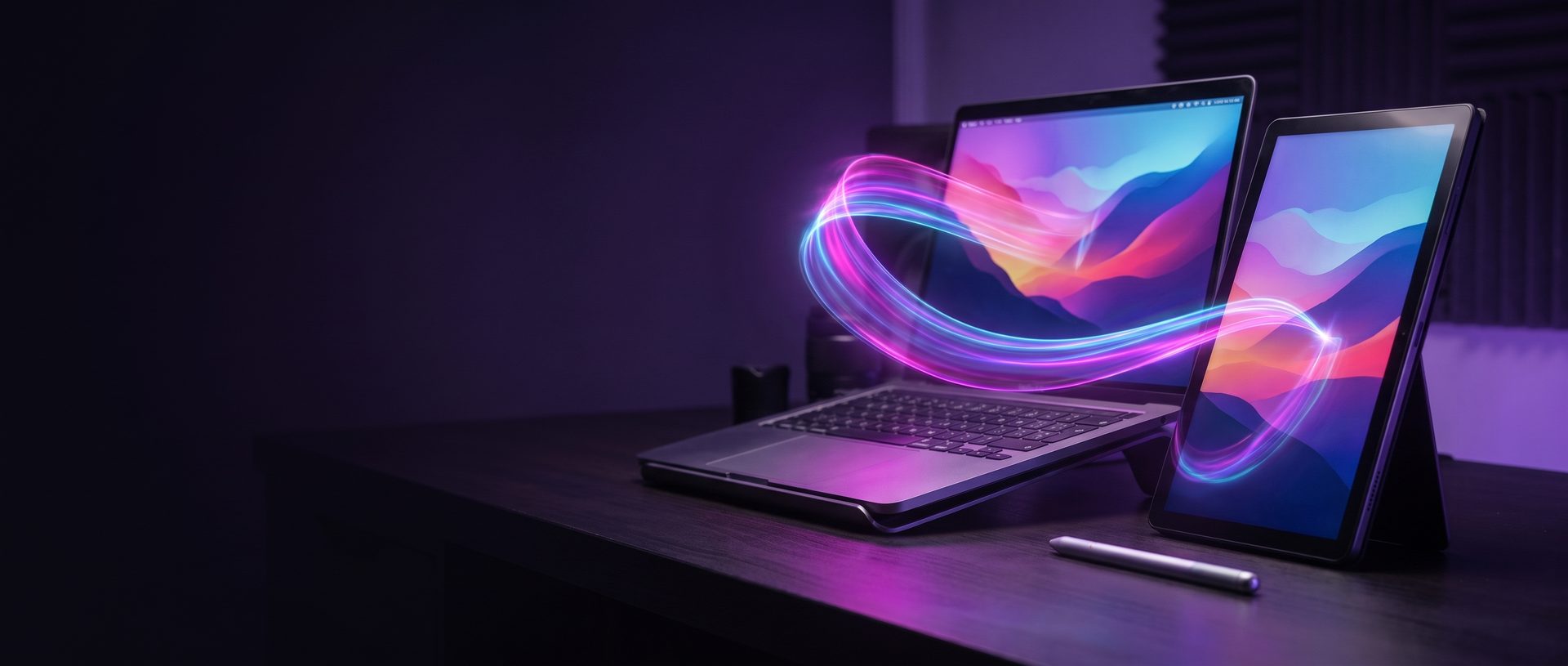
Second monitor for Windows and Mac
PixelBridge turns an Android tablet or phone into a real extra display for your PC or Mac. Plug in a cable or use your own Wi-Fi, then extend your desktop, mirror it, or draw on it with a pen.
What it does
Most of us have a tablet in a drawer. PixelBridge puts it next to your keyboard and makes it work like a screen you bought for the job.
Your computer sees a new monitor at your device's own resolution and refresh rate. Arrange it, drag windows onto it, full-screen a video on it.
Extend gives you a second desktop for reference, chat or your tool palettes. Duplicate shows your main screen on the device, for drawing on what you see or showing someone across the table.
Rotate the tablet and the desktop turns with it, portrait or landscape. Lock it when the tablet sits on a stand.
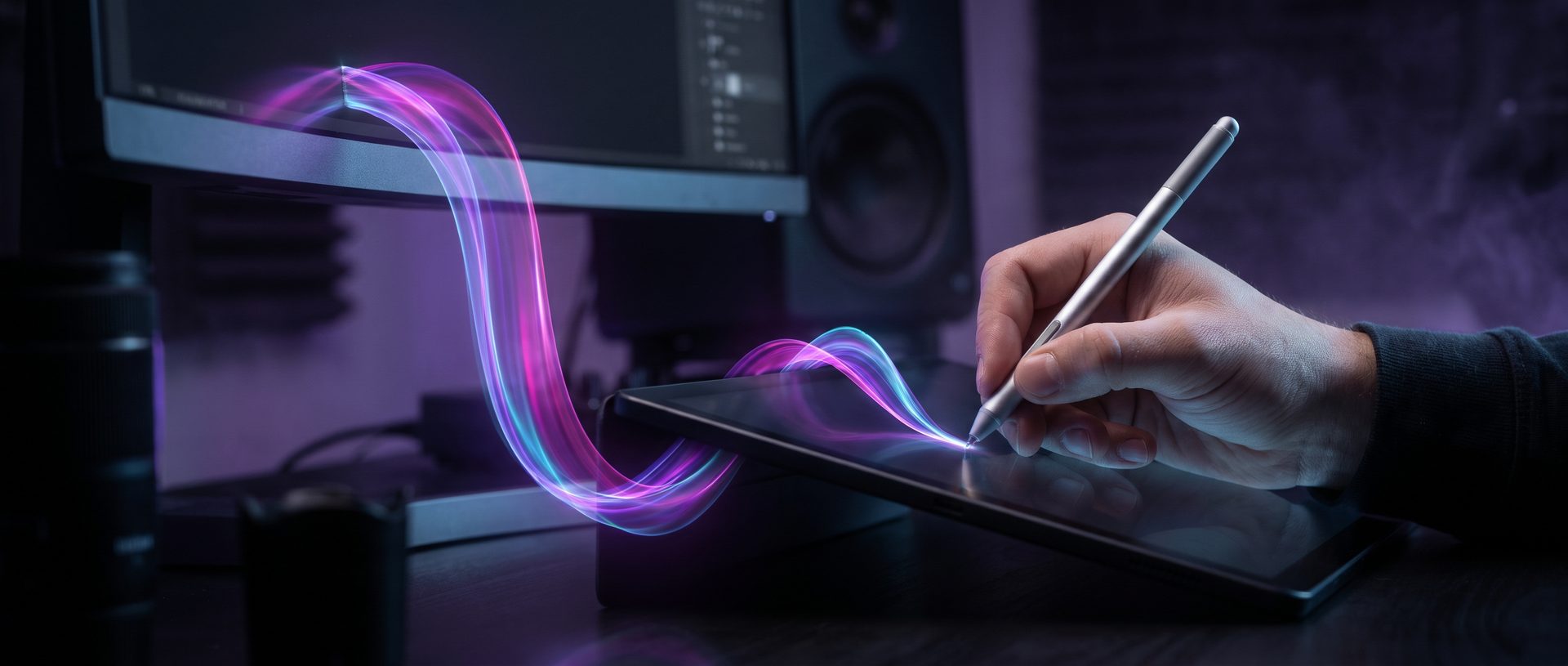
A pressure pen such as the Samsung S Pen draws with real pressure in Krita and other drawing apps. Tune the curve to your hand.
Tap to click and drag to move things. On Windows, two-finger scroll, pinch and press-and-hold too. Zoom the picture on the device for close work.
Send undo, brush size and the rest of your keyboard shortcuts from the screen, with no keyboard in reach.
How it works
A free download for Windows 10 or 11, or macOS 13 and later. On Windows it adds its own display and pen drivers; on a Mac it uses the display support built into macOS.
Install PixelBridge from Google Play on your tablet or phone. The computer program shows a code that opens the right page.
Connect with a USB cable and PixelBridge picks the cable on its own. For Wi-Fi, scan the code your computer shows, and it reconnects by itself after that.
Download
The program on your computer and the app on your device.
These two are for your PC or Mac: open pixelbridge.app/get on that computer.
Setup installs the display and pen drivers, a small background service and the tray app.
Windows 10 or 11, 64-bit · FreeDownload for WindowsA signed, notarized disk image. Drag PixelBridge to Applications and the Setup assistant walks you through the rest.
macOS 13 or later · FreeDownload for MacThe app for your tablet or phone, on Google Play. The same app on both, and one purchase covers both. Try it for an hour of connected time, then pick a plan.
Android 11 or later
Coming soon
Pen
A pressure pen such as the Samsung S Pen draws with real pressure on your computer. Krita is the drawing app we test with, on both Windows and macOS.
Pen and pressure in the wikiStart from a preset, drag the dots to bend the curve, try it, and save it under a name.
Cable or Wi-Fi
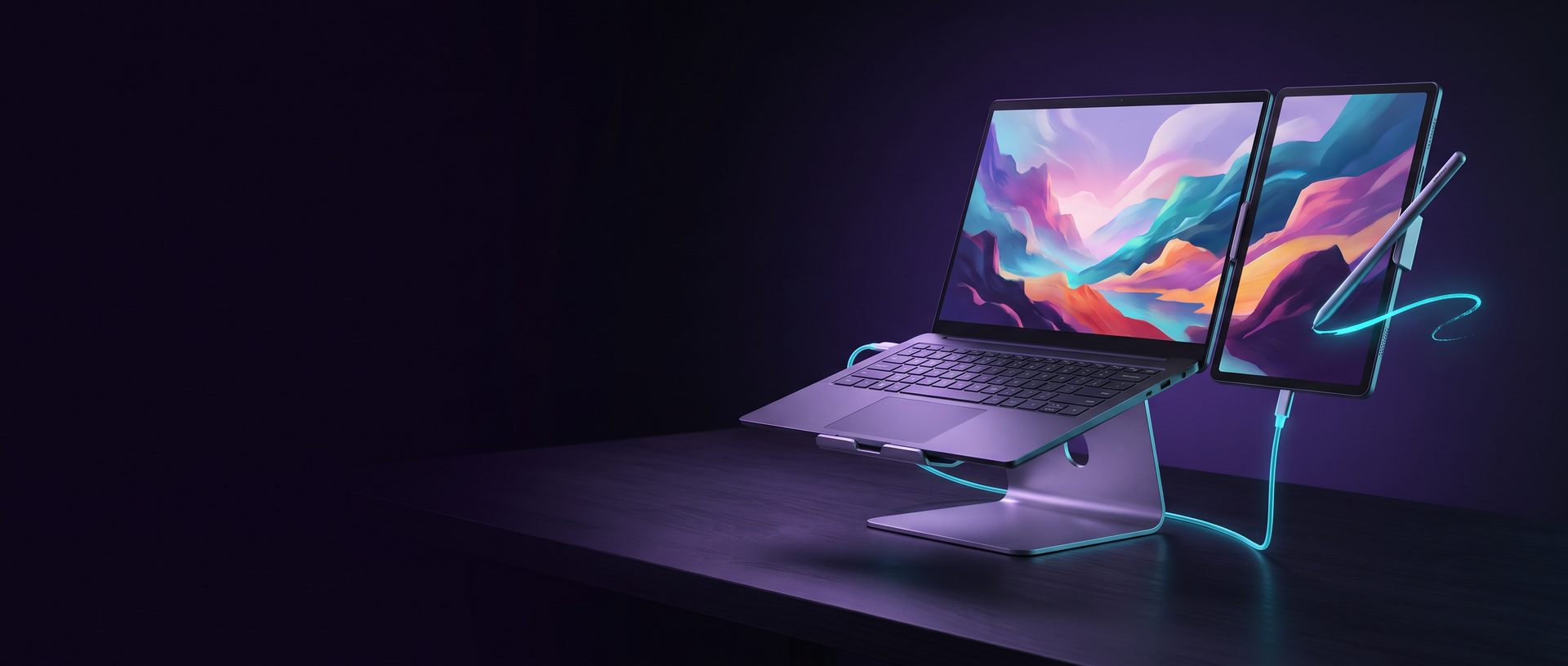
Use the cable when you can: there is no network to set up and nothing to pair, because the cable itself is the trust. Wi-Fi gives you a tablet you can pick up and walk around with.
Pairing
The first time a device connects over Wi-Fi, you show it that the computer is yours: scan its code, or check that both screens show the same six digits and click Allow. After that it comes back by itself.
Rename or forget a device at any time, on the computer or on the device.
How pairing worksPrivate by design
Your screen goes from your computer to your device, and nowhere else. It never passes through us.
Questions
No. Plug in a USB data cable and PixelBridge takes it from there. On a Windows PC, set the phone's USB mode to File transfer if it is on charge only.
Yes. Over Wi-Fi, the computer and the device must be on the same network. You pair once by scanning a code, and after that it reconnects by itself.
Coming soon: apps for Google TV, then iPhone and iPad, then Apple TV. Today PixelBridge runs on Android phones and tablets, with a Windows PC or a Mac as the computer.
No. Sound keeps playing from your computer.
Free on your computer. An hour free on your device. No account, ever.